
I wanted to insert an AdMob NativeAd into an article feed in a Capacitor app. An ad appears between articles and scrolls along with them. From a user's perspective, it is a familiar pattern.
Implementing it turned out to be surprisingly difficult.
While the screen is still, the ad fits its HTML slot perfectly. But as soon as you drag, the articles move upward while the ad follows a little behind. An ad that should be part of the feed ends up looking as though it is floating above it.
I investigated this scroll tracking in the NativeAd support PR for @capacitor-community/admob. I initially thought sending coordinates would be enough, but ultimately chose different approaches for iOS and Android.
HTML provides the ad's slot
In this implementation, HTML defines a slot that determines the ad's position and size.
<capacitor-admob-native
  feed-id="articles"
  slot-key="sponsored-after-article-42"
></capacitor-admob-native>
This is a Custom Element, one of the Web Components technologies. It extends HTMLElement and is registered with customElements.define(). It connects placement with lifecycle management: as the element is added to or removed from the DOM, or its attributes change, it connects to or disconnects from the ad feed. Use a stable key in slot-key to identify the ad slot. See the Custom Element implementation.
The plugin creates the ad itself as a native View from the Google Mobile Ads SDK and overlays it on the WebView. On Android, it registers the ad assets with NativeAdView and leaves click and impression handling to the SDK. See Google's guide to displaying native ads.
The HTML slot and the ad are therefore separate Views. Scrolling the slot does not move the ad, and HTML's overflow: hidden alone cannot clip it. We need to send the position and visible bounds to the native side, then move and clip the ad there as well.
Sending coordinates continuously still falls behind
My first approach measured the slot with getBoundingClientRect() during scrolling and sent the result through an ordinary Capacitor plugin call.
Scroll event
  → requestAnimationFrame
  → Measure the slot's coordinates and visible bounds
  → Capacitor plugin processing
  → Update the ad View on the native UI thread
This works with both ordinary overflow: auto containers and Ionic's ion-content. However, by the time the native side receives the coordinates, the HTML may already have moved farther.
Using requestAnimationFrame (rAF from here on) does not mean the Web and native sides render in the same frame. In a test that temporarily paused JS, the WebView kept scrolling while the ad stayed in its original position.
Could I change where the ad was placed, or which element handled scrolling?
One reference was Capacitor Google Maps, which places the map behind the WebView on Android. That approach requires making the backgrounds of the WebView and its ancestor elements transparent. Requiring an app to change its backgrounds just for ads felt too restrictive, and placing the ad behind the WebView would not eliminate the alignment problem, so I ruled it out.
Next, I tried scrolling Android's WebView itself. This lets the native side read the scroll offset, and tracking improved in the prototype.
But ion-content scrolls an internal HTML element. In my test environment, changing that element's scrollTop left WebView.scrollY at 0. Switching to root scrolling stopped ionScroll from firing and prevented ion-infinite-scroll from detecting the end of the content. scrollToPoint() and ion-refresher also stopped working as expected.
The ad followed the content, but the rest of the app broke. That was not an acceptable trade-off.
On iOS, I could track scrolling on the native side
iOS offered another approach: finding the UIScrollView inside WKWebView that corresponds to the HTML scroll element.
The Web side supplies the element's rectangle and content dimensions. If exactly one matching candidate is found, the native side observes its contentOffset. The ad's position is stored in content coordinates, and the scroll offset determines its position on screen and clipping bounds.
With this approach, JS does not need to send coordinates every frame during ordinary scrolling. It only needs to measure again when the layout changes, so this is the design I chose for iOS.
To enable this tracking, pass the scroll element as scrollElement to NativeAdFeed.create(). For ion-content, obtain it with await ionContent.getScrollElement(). If you omit it, iOS also uses the JS coordinate-update approach.
Here is a comparison within the same ion-content: the initial approach based on getBoundingClientRect() updates versus observing UIScrollView's contentOffset.
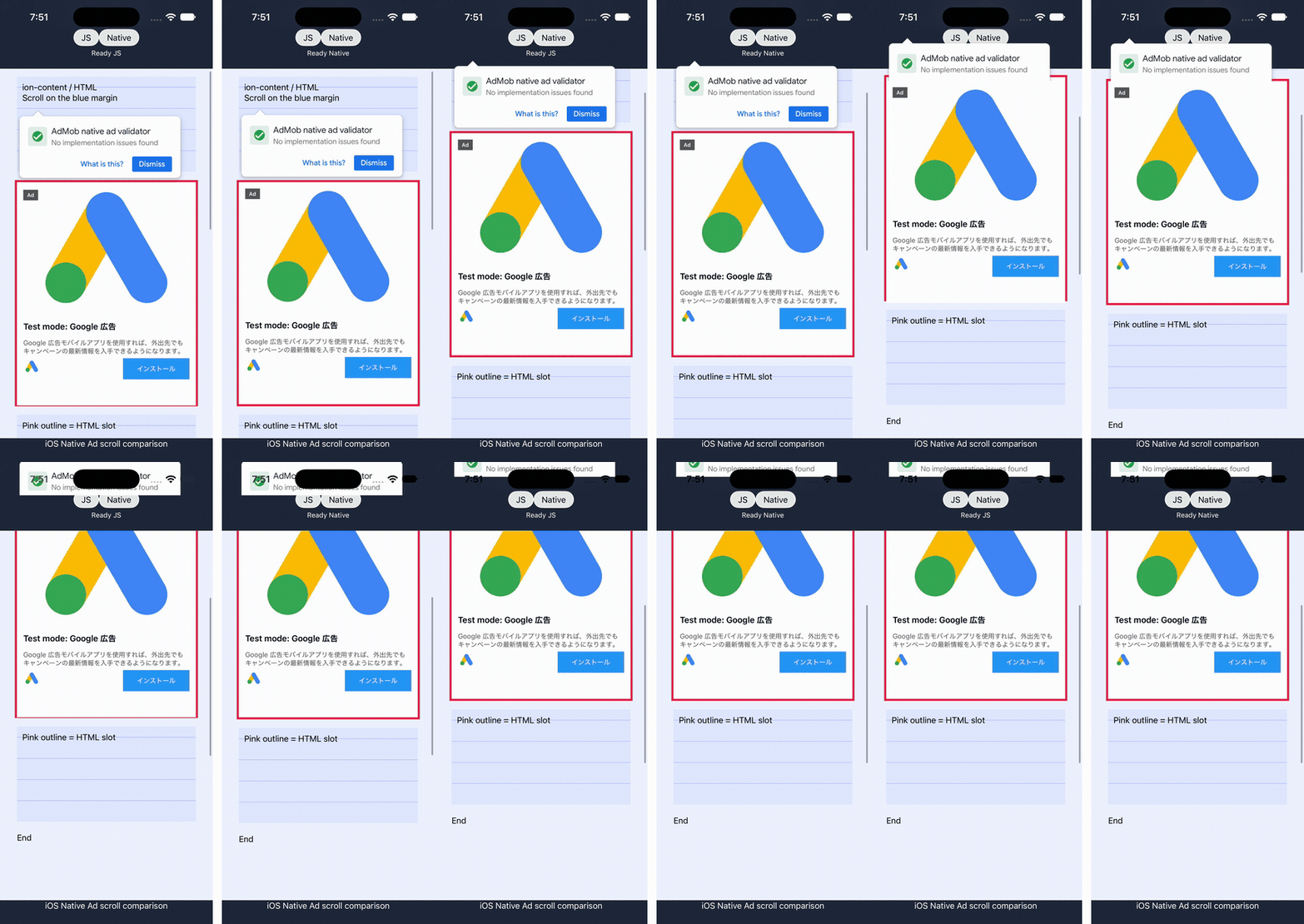
Left: getBoundingClientRect() + rAF + ordinary Capacitor calls. Right: observing UIScrollView's contentOffset. The pink outline marks the HTML ad slot.
On the left, the ad drifts away from the slot during scrolling. On the right, they stay aligned. The same was true when scrolling back in the opposite direction. In this environment, the UIScrollView approach tracked the slot perfectly.
I recorded this on October 7, 2026, using an iPhone 17 Pro simulator running iOS 27.0. Both approaches received drag gestures with the same position and speed, starting in the blue margin outside the ad. This comparison does not include swipes that start on the ad itself. The GIF shows the first half of a back-and-forth gesture, with the start of motion aligned and playback slowed to 0.5×. I did not deliberately pause JS to add load. The “AdMob native ad validator” visible on screen is the SDK's test-ad display. “Perfectly” here describes the visual tracking observed in this comparison; it does not mean I measured zero error on every physical device.
This is still an experimental approach that depends on WKWebView's internal View hierarchy. If a single corresponding View cannot be identified, the ad is hidden. It targets a single scroll element, does not support arbitrary nesting or transforms, and does not support virtual scrolling in the preview.
I could not find an equivalent path on Android. Instead, I worked on improving coordinate updates while preserving the app's existing scrolling behavior.
On Android, shortening the path mattered more than shrinking the payload
First, I tried registering the layout once and sending only scrollTop and scrollLeft during scrolling. That removed the repeated rectangle measurements and reduced the arguments sent from roughly 460 bytes to 140 bytes.
At about one-third of the original payload, I expected a noticeable change. Visually, though, I could not see a clear improvement.
The path from JS to native was unchanged, while the amount of state to manage increased, including baseline coordinates after layout changes. Given the difference I could actually perceive, it was not worth adopting.
Next, I changed the communication path. I added a dedicated coordinate-update path using AndroidX's WebMessageListener. Its callback runs on the UI thread, so it can skip the handoff to the plugin-processing thread used by the ordinary path in this implementation, as well as waiting for an acknowledgment for every update. See the AndroidX API reference.
Scroll event
  → requestAnimationFrame
  → Measure the slot's coordinates and visible bounds
  → Update the ad View through a dedicated WebMessageListener
I compared three approaches: the ordinary path, immediate updates through the dedicated path, and updates through the dedicated path that wait until the next rendering opportunity.
At this point, I also changed how I measured them. Switching approaches while the app was running produced inconsistent results, so I decided to terminate the process each time and measure the first drag after restarting it. The goal was to compare the initial drift that concerned me under the same conditions each time.
Using Google's test ads, I measured each condition three times on an Android emulator. In the table, “mean lag” is how far the bottom edge of the ad extended below the HTML slot as the slot scrolled upward. The unit is CSS px. “Over 20 px” is the percentage of recorded frames in which that lag exceeded 20 px.
Measurement conditions and how to read the numbers
I compared ion-content with ordinary overflow: auto on an Android API 36.1 emulator, with two ad slots. Each run started after a force-stop. I confirmed that the PID had changed and the ads were ready, then dragged upward between the same coordinates over 1.5 seconds without any preliminary scrolling. I also varied the order in which the approaches and containers were tested.
I did not clear app data or restart the emulator. “Cold start” here means a process start, not the first launch after installation.
I normalized the recordings to 60 fps and analyzed the intervals during which the HTML slot was actually moving. “Mean lag” pools the relevant frames from all three trials; it is not a simple average of the three trial means. The denominator for “over 20 px” is likewise all relevant frames across the three trials. This measures downward tracking lag, not communication latency or positional error in every direction. I also did not treat individual frames as independent trials to establish statistical significance.
The results can vary with the ad creative, SDK processing, recording, and host-machine load. This is an exploratory comparison with three trials per condition, not a measurement of physical-device performance.
During measurement, Native Ad Validator warnings sometimes appeared for partially visible ads. The PR subsequently added a minimum media-size guard for Medium ads on Android, and I confirmed that certain ad creatives no longer triggered the warning. I have not remeasured tracking performance after that change, so the results below document the comparisons that led to the chosen design.
| Approach | ion-content mean lag | overflow mean lag | ion-content over 20 px | overflow over 20 px |
|---|---|---|---|---|
| Ordinary path (rect) | 27.7 px | 29.0 px | 58.7% | 56.0% |
| Dedicated path, immediate update (direct) | 14.9 px | 15.3 px | 34.5% | 27.5% |
| Dedicated path, wait for rendering (direct-frame) | 19.4 px | 18.8 px | 38.7% | 33.3% |
Here are the recordings side by side. The ordinary path (rect) is on the left; the dedicated path (direct) is on the right. The pink line marks the HTML slot, and the white area is the native ad. Watch where the white area extends below the bottom edge of the slot to see the tracking lag.
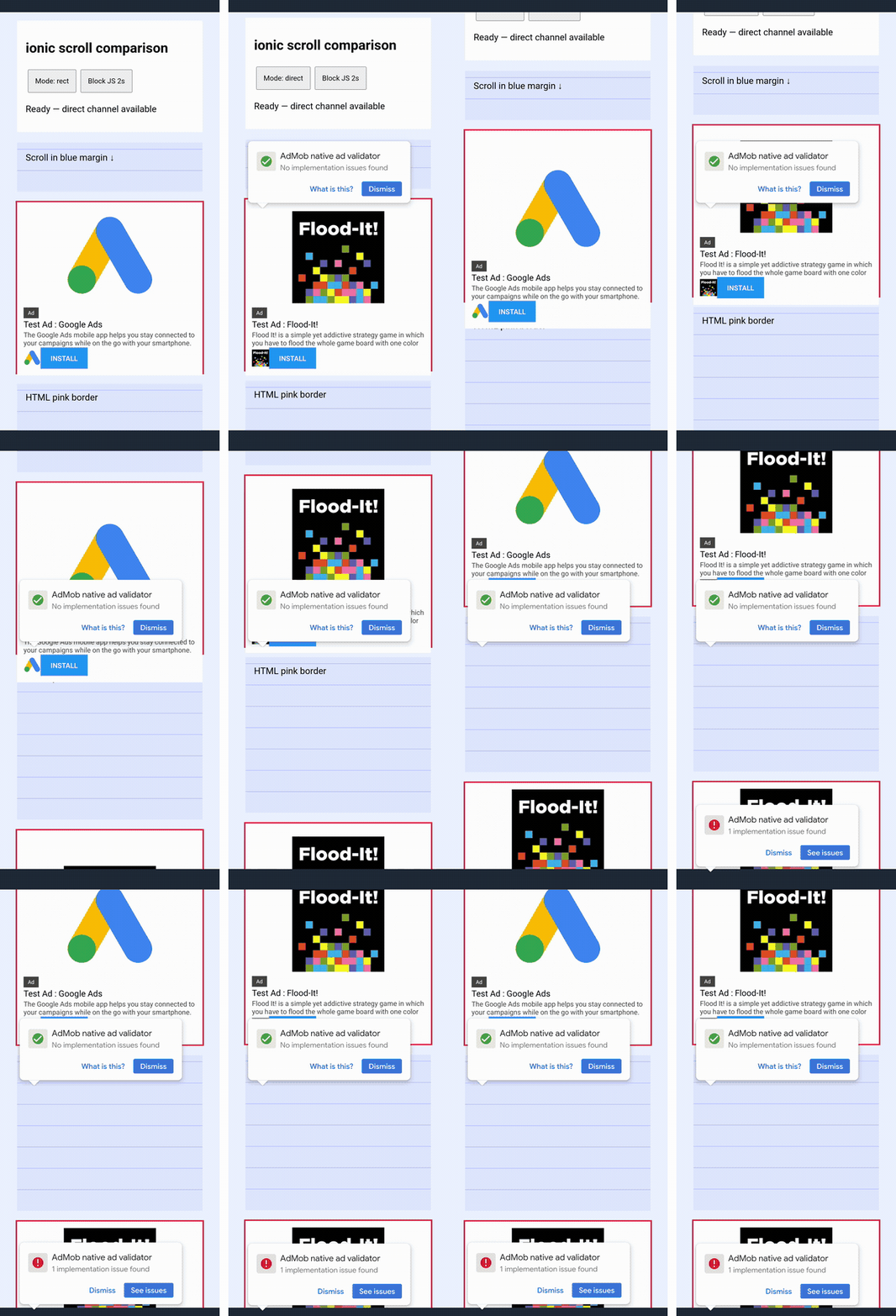
The first trial for each approach, played at 0.5× speed to make the motion easier to see.
The GIF uses the same time interval from the measurement recordings, cropped to part of the screen and scaled down. The ad creative varies between loads, and the SDK's validation pop-ups remain visible. Focus on the relative positions of the ad's right edge and the pink outline, rather than the pop-up. The GIF shows one trial; the table aggregates three trials per condition.
The dedicated path with immediate updates, direct, roughly halved the mean lag in both containers. Adding another wait for rendering on the native side made the results worse in this comparison.
Even so, every approach exceeded 20 px of lag in all three trials. Tracking had improved, but there was still visible drift. Next, I reviewed what happened after the native side received the coordinates.
Repeating layout work when only the position had changed
The original native-side update hid the ad, set the dimensions of both the ad itself and its clipping container, then showed it again and brought it to the front.
During scrolling, however, many frames change only the position. I was setting the dimensions again every time, even when the width and height were unchanged.
I changed the implementation to set LayoutParams only when dimensions changed, and to update positions without hiding ads that still had valid placements. Changes to the clipping bounds update the dimensions that need to change; ads with invalid placements are hidden. Bringing an ad to the front is also limited to transitions from hidden to visible.
I also tried removing the rAF wait on the JS side. With the dedicated path and immediate updates common to all runs, I compared four conditions.
| Condition | ion-content mean lag | overflow mean lag | ion-content over 20 px | overflow over 20 px |
|---|---|---|---|---|
| Original update logic (direct) | 26.5 px | 18.1 px | 47.1% | 28.6% |
| Remove rAF (no-raf) | 18.4 px | 18.1 px | 31.1% | 30.0% |
| Reduce native updates (lean) | 11.5 px | 14.0 px | 20.4% | 24.4% |
| Both changes (both) | 12.1 px | 7.0 px | 21.4% | 14.6% |
Here, the original update logic (direct) is on the left, and the version with unnecessary updates removed (lean) is on the right. Both use the dedicated path and rAF.
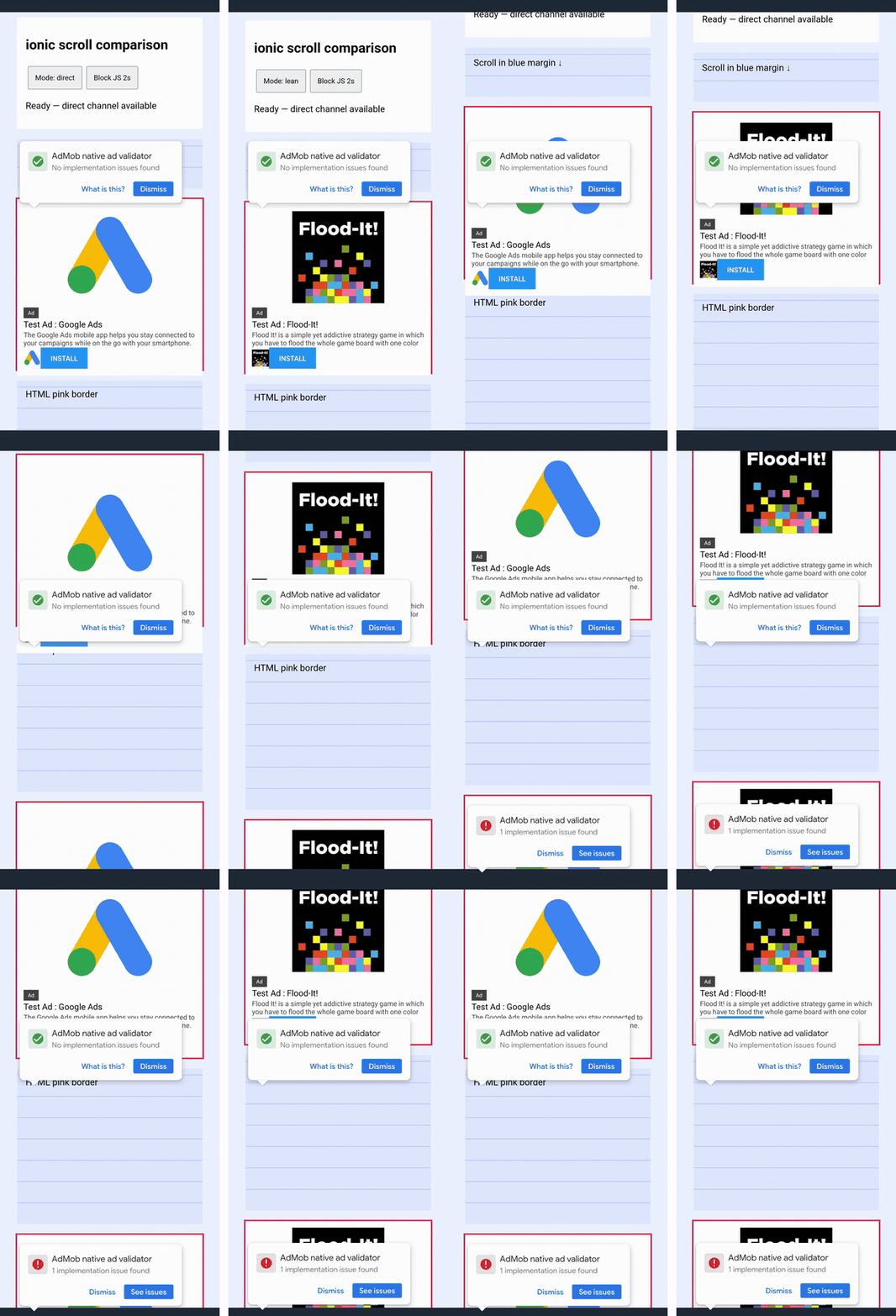
The first trial for each of these two conditions, taken from the set of 24 measurements. Again, playback is at 0.5× speed.
This was a separate measurement set from the previous table, and I measured the direct baseline again. Compare differences within each table. There were again three trials per condition: two containers × four conditions, for 24 trials in total.
In Ionic, lean retained rAF and reduced only unnecessary native updates. Mean lag fell from 26.5 px to 11.5 px. With ordinary overflow, applying both changes in both produced the lowest mean lag, at 7.0 px.
Dimension assignments also decreased. Moving from direct to lean reduced the number of LayoutParams assignments per placement update from 2.44 to 0.34 in Ionic, and from 2.47 to 0.37 with overflow. This is a different metric from actual layout passes, but it shows that work previously repeated on every update was reduced.
Why I kept rAF anyway
Looking at those numbers, it is tempting to choose both. But removing rAF also removes the per-frame limit that batches measurement and transmission.
For ordinary overflow, the native side accepted 125 updates across the three lean trials, compared with 169 for both. Lag decreased, but the number of updates increased.
That alone does not tell us the CPU cost or power consumption. In Ionic, however, keeping rAF gave nearly the same tracking performance. I therefore chose to send updates through the dedicated path, reduce unnecessary native work, and retain rAF. I have not measured how removing rAF affects CPU time or dropped frames, so these results alone are not enough to justify adopting it.
The dedicated path skips waiting for acknowledgments only for ordinary coordinate updates. Before opening a modal, the app uses pause() to wait until the ads are hidden. It calls resume() when the modal closes and destroy() when leaving the screen. Session IDs and update sequence numbers also prevent delayed, stale coordinates from making an ad reappear.
Some questions remain untested: swipes starting on an ad may not reach the WebView, and I have not yet verified fast flings on physical devices or VoiceOver/TalkBack behavior. At the same time, I have not found a concrete way to reduce Android's tracking lag further while preserving existing HTML scrolling. This design is as far as I got with the approaches I tested.
Conclusion
I chose to track the native scroll View on iOS. On Android, I shortened the coordinate-update path, reduced the work done after receiving updates, and kept rAF.
I had been focused on sending coordinates faster. Looking deeper, though, I found that every position change was also resetting dimensions, hiding the ad, and showing it again. Removing that work improved tracking even in Ionic. When an operation crosses the Web/native boundary, following it all the way through to the receiving side can reveal more work to remove. That is a lesson I want to carry into other plugins as well.
See you next time.