
In my Food Label Printing app, users can arrange food-label layouts in any quantity and print them on a typical home printer.
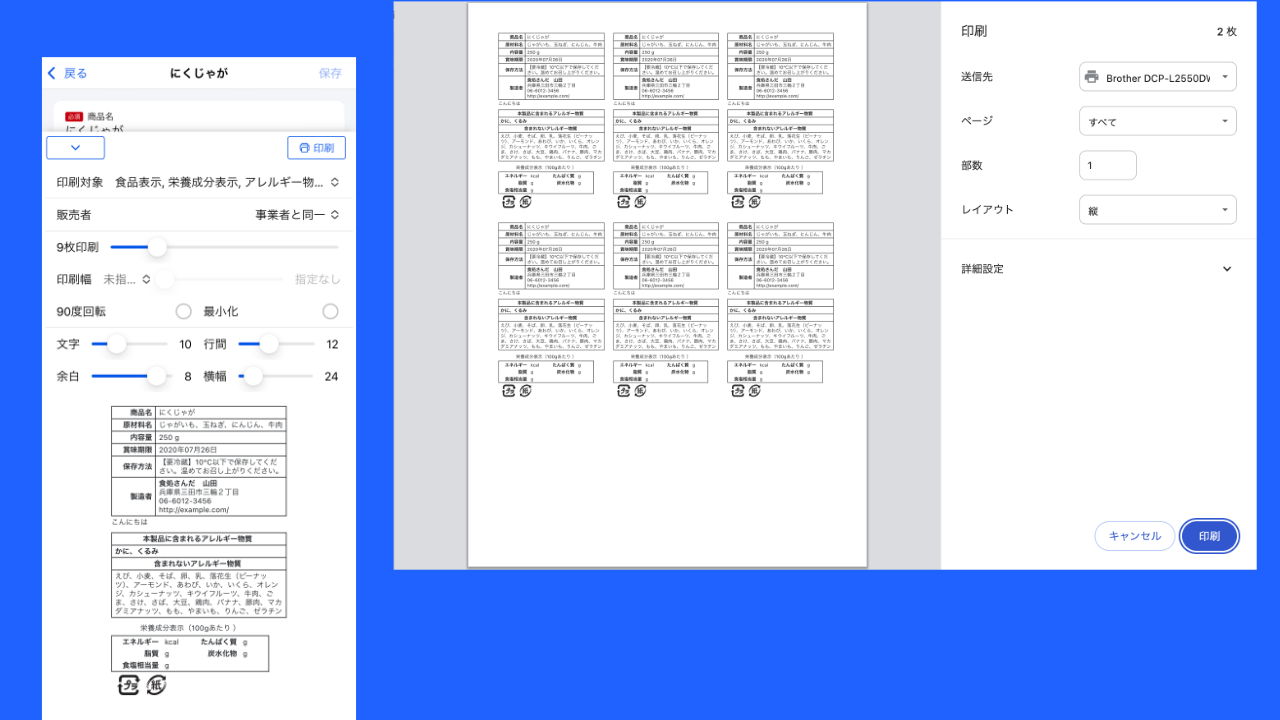
Here is a brief look at how I implemented this feature.
Steps
1. Convert the element to print into an image
On the preview screen, food labels are rendered as HTML elements. Drawing everything on Canvas would be too much work, and when you need real-time string updates and show/hide bindings, HTML elements are easier and more reliable.
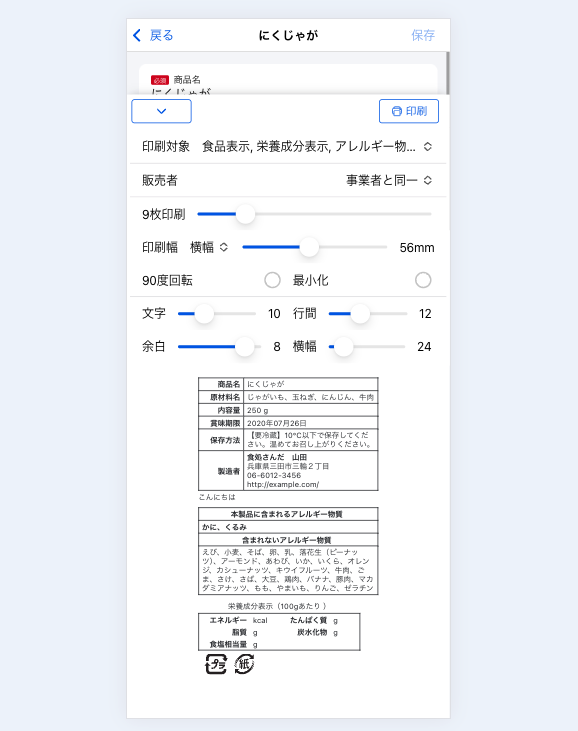
When the user taps Print, the first step is to turn that DOM into an image. I use the dom-to-image-more library to convert HTML elements into images.
https://github.com/1904labs/dom-to-image-more
DOM measurement is occasionally slightly off, so at the moment I add padding-bottom: 4px to the DOM when capturing the image to give it a bit of extra space. Otherwise the bottom gets clipped.
Once that is done, you have the image to print (base64).
2. Arrange the images
Next, lay out the print images side by side. In the screenshot it says "Print 9 labels," so I arrange nine copies. In Angular, bind a printArray property and repeat the array nine times like this (I use Signals):
this.printArray.set(Array(this.super.options().printNum).fill(0).map((x, i) => i));
@for (item of printArray(); track item) {
<img
    class="print-label"
    alt=""
    [src]="vm.printBase64()"
/>
}
3. Handle show and hide
For printing, the goal is a state where "HTML, body, and all other styling are gone and only the images are lined up." So I disable all of Ionic's default styles only while printing.
@media print {
  body {
    overflow: auto !important;
    max-height: none !important;
    position: inherit !important;
  }
  .ion-page,
  .ion-modal,
  ion-router-outlet {
    overflow: visible !important;
    position: inherit !important;
    contain: none;
  }
  ion-toolbar {
    display: none;
    border: none !important;
    --border-style: none !important;
  }
  ion-header,
  ion-content {
    display: none;
  }
  ion-footer {
    box-shadow: none !important;
  }
}
That disables most of the UI chrome. Next, on the frontmost page, toggle what is needed for printing and what is not. I omitted this from the template above, but suppose the HTML template looks like this:
...
<ion-content>
  <main class="print-area">
    <div class="label-preview">
      <table>... (area where the user reviews the preview) ...</table>
    </div>
    @for (item of printArray(); track item) {
      <img
        class="print-label"
        alt=""
        [src]="vm.printBase64()"
      />
    }
  </main>
</ion-content>
While the user is previewing on screen, the styles look like this. The div.label-preview element is visible, but img.print-label has display: none, so you cannot see it.
@media screen {
    main.print-area {
        .label-preview {
            display: block;
        }
        img.print-label {
            display: none;
        }
    }
}
While printing, it looks like this. The div.label-preview that was visible until Print was tapped is hidden, and img.print-label is shown.
@media print {
    main.print-area {
        .label-preview {
            display: none;
        }

        img.print-label {
            display: inline-block;
            page-break-inside: avoid;
            break-inside: avoid;
        }
    }

    section.preview-component {
        overflow: visible;
        max-height: 100% !important;
    }
}
This makes what the user sees in preview match what actually prints.
Summary
When handling printable output in an app, mobile apps can send Base64 or PDF to a print API. On the web, seamless printing means reproducing the expected layout in HTML. I hope this approach is useful.
See you next time.